Setting up IPTV on Google TV is usually easier than it looks. The important part is separating the device, the player, and the television service. Google TV provides the operating system and app store, an IPTV player opens your playlist, and your authorized service supplies the login details and channels.
For most users, the safest route is to install a compatible TV player from Google Play, add the supplied Xtream Codes or M3U details, connect the EPG, and test a few channels before changing advanced settings. If the player is not listed for your device, do not assume that any phone APK will work correctly with a television remote.
This guide explains the complete process on televisions with Google TV, Chromecast with Google TV, and Google TV Streamer. It also covers missing apps, invalid login details, empty program guides, buffering, crashes, storage problems, and privacy.
Quick answer: Connect the Google TV device to the internet, open the Apps tab or search from the Home screen, and install a compatible IPTV player from Google Play. Open the player and add your authorized account using Xtream Codes or an M3U playlist. Add the XMLTV or EPG URL if it is separate, allow the first synchronization to finish, and test live TV. If the app is missing, verify device compatibility, country availability, storage, and the Google account before considering another supported device or installation method.
Table of Contents
1. Understand What Google TV Does
Google TV is an interface and software platform used on streaming devices and selected smart televisions. It helps you install television-compatible apps, search for content, manage profiles, and control playback with a remote.
It does not automatically include a paid IPTV subscription, private playlist, or login credentials.
Google TV, the Player, and the Service Are Different
An IPTV setup normally has three separate parts:
| Part | What it does | What it does not do |
|---|---|---|
| Google TV device | Runs apps and displays video | Does not create private IPTV credentials |
| IPTV player | Reads a supported playlist or account | Usually does not include channels |
| Authorized service | Supplies the account, playlist, and permitted streams | Does not replace the player or device |
This distinction prevents a common mistake: installing a player and expecting channels to appear automatically. A player needs valid account information in a format it supports.
Google TV and Android TV Are Related but Not Identical
Google TV is built on the Android TV platform, but the Home screen, menus, recommendations, and manufacturer settings can differ. An instruction written for an older Android TV box may therefore use menu names that do not exactly match a current Google TV device.
Google explains the relationship in its official guide to how Google TV and Android TV work. App developers decide which television devices and regions their apps support, so an app that runs on one Android-based product may not appear on every Google TV model.
Use IPTV Only for Content You Are Authorized to Watch
The installation process is technically neutral. Your right to watch or redistribute content depends on the service, the channels, and the law where you live.
Use a legitimate account and do not share credentials beyond the permitted connection limit. This guide does not explain how to bypass subscriptions, geographic controls, device security, or copyright restrictions.
2. Identify Your Google TV Device
Before installing anything, identify the hardware. “Google TV” may describe a streaming device connected to HDMI or software built into the television.
Common Google TV Devices
You may be using:
- A television with Google TV built in.
- Chromecast with Google TV.
- Google TV Streamer.
- A third-party certified streaming box with the Google TV interface.
The basic app setup is similar, but storage, Ethernet support, update menus, video formats, and manufacturer settings can vary.
Find the Device Information
Start from the Google TV Home screen and open a path similar to:
Settings → System → About
Record the device name, model, Android TV OS version, security patch level, and available system update. On a television, the manufacturer may place additional product information under Settings → System, Device Preferences, or Support.
Do not publish the device serial number, Wi-Fi MAC address, Google account email, or other identifiers in screenshots.
Check Whether the Player Is Designed for TV
Google TV uses a remote-first interface. A compatible player should be navigable with directional buttons, Select, and Back. A phone-only application may install in some situations but still display incorrectly, require touch input, or fail to rotate and scale for a television.
Look for explicit Android TV or Google TV support in the app’s official listing. Do not rely only on the word “Android.”
3. Choose the Right IPTV Player and Login Method
Choose the player based on the account format you have, not only on screenshots or popularity.
The Main Login Formats
| Format | Information normally required | Typical use |
|---|---|---|
| Xtream Codes | Server URL, username, password | Simple account-based setup |
| M3U URL | One complete remote playlist URL | Portable playlist import |
| Local M3U file | A downloaded playlist file | Only if the player supports local files |
| XMLTV / EPG URL | A separate guide-data URL | Adds program titles and schedules |
| Portal or device method | Portal URL and device identifier | Only with a compatible player and authorized service |
Not every player supports every format. Check the official listing and the player’s own documentation before installing it.
Xtream Codes Is Often Easier on a TV
Xtream Codes-style login separates the server, username, and password into three fields. This is often easier to type and correct with a remote than one long M3U address.
It may also allow the player to organize live television, movies, series, and guide data automatically. The exact result depends on the account and player.
M3U Is Flexible but Easy to Mistype
An M3U URL may contain the full server address, port, username, password, output type, and token. One missing character can stop the playlist from loading.
If you use M3U, transfer the URL securely or type it carefully. Do not shorten it with a public URL shortener because the link may expose private credentials.
A Player License and a Content Account Are Separate
Some players charge for premium features, multiple playlists, recording, or advanced guide controls. Paying the player developer usually unlocks software features; it does not purchase television channels.
Review the price, trial terms, device limits, and renewal policy in the official app listing before paying.
TiviMate on Google TV
TiviMate is designed for television devices based on Android TV. If you choose it and it is officially available for your compatible device, follow our complete [TiviMate setup guide](/tivimate-setup/) for its specific menus.
The rest of this article stays player-neutral so that the same process works with other legitimate, compatible applications.
4. Prepare the Device and Network
A few checks before installation can prevent most setup failures.
Gather What You Need
Prepare:
- The Google TV remote.
- A stable internet connection.
- The Google account used on the device.
- Enough free storage for the player and guide data.
- An authorized IPTV account.
- The exact server URL, username, and password, or the complete M3U URL.
- A separate XMLTV or EPG URL if one was supplied.
- The permitted connection limit for the account.
Keep the credentials open on a trusted phone or computer, but do not send them to an unknown “checker” website.
Check the Internet Connection
Open:
Settings → Network & Internet
Confirm that the device is connected to the intended network. Then open a trusted streaming app and play a video. If all online apps fail, solve the network problem before changing the IPTV player.
Google’s official Google TV device troubleshooting guide recommends checking Wi-Fi, using the correct band, restarting the router, moving it closer, or using a wired connection where supported.
Update Google TV
On many devices, use:
Settings → System → About → System update
Install an available update and restart when prompted. A television manufacturer may use slightly different wording.
System updates can improve app compatibility and playback stability, but they cannot make an unsupported app available for every model or country.
Check Storage Before Importing a Large Playlist
Players can store logos, categories, thumbnails, catch-up information, and EPG databases. A large account may need much more space than the initial app download.
Open Settings → System → Storage or Settings → Apps to review available space. Remove only apps and files you recognize. Do not clear data from unrelated apps used by other people in the household.
Understand Profile Restrictions
Google states that installed apps work across standard profiles but not necessarily kids’ profiles. If the Apps tab, search result, or Install button is missing, confirm that you are using a regular adult profile and that parental controls are not blocking the app.
5. Install an IPTV Player From Google Play
The recommended method is Google Play on the television. Google’s official install apps on Google TV guide supports both direct search and browsing through the Apps tab.
Method 1: Search From the Home Screen
- Press the Assistant button on the remote or select Search.
- Say or type the exact player name.
- Open the correct result.
- Verify the developer and app description.
- Confirm that the listing supports television devices and your login format.
- Select Install.
- Wait for installation to finish, then select Open.
Searching the exact name is usually faster than browsing broad categories.
Method 2: Browse the Apps Tab
- From the Google TV Home screen, open Apps.
- Browse categories or use the search option.
- Select the player.
- Review its listing, privacy information, price, and supported features.
- Select Install.
Some manufacturer interfaces display the Play Store differently, but the app listing and compatibility decision still come from Google Play and the developer.
Verify the Listing Before You Install
Apps can have similar names and icons. Check:
- Developer name.
- Number and quality of recent reviews.
- Last update date.
- Data-safety information.
- In-app purchases or subscription terms.
- Television and remote compatibility.
- Support for Xtream Codes, M3U, XMLTV, or your required method.
Avoid cloned apps, unofficial download pages, and listings that make unrealistic promises about included premium channels.
Move the Player in Your Apps Row
After installation:
- Go to Your apps on the Home screen.
- Highlight the player.
- Hold the Select button until the menu appears.
- Choose Move.
- Place it in a convenient position and confirm.
This changes only the launcher order; it does not affect the playlist.
6. Set Up IPTV With Xtream Codes
Use this method if you received a server address, username, and password.
Add a New Playlist or User
Open the player and look for wording such as:
- Add playlist.
- Add user.
- Xtream Codes API.
- Login with Xtream Codes.
- Server login.
Menu names vary, but the required fields are usually similar.
Enter the Server Address Correctly
Type the server address exactly as provided. It may include:
http://orhttps://- A domain or IP address.
- A port after a colon.
- A path required by the service.
Do not automatically add or remove www, change the protocol, or guess a port. For example, https://example.com:1234 and http://example.com are not interchangeable.
Enter the Username and Password
Credentials are case-sensitive. Watch for:
- Uppercase
Iversus lowercasel. - Letter
Oversus number0. - Extra spaces added before or after a value.
- Smart quotes or punctuation copied from a formatted message.
- An expired password or account.
If possible, use a secure input or remote-control application from the device manufacturer rather than sharing credentials through a public clipboard service.
Name the Playlist Clearly
Use a private label such as Living Room or Main Playlist. Do not put the password or full server address in the playlist name.
Select Add, Login, or Next, then allow the first synchronization to finish. A large library can take time to load.
Limit the Initial Content if the Player Allows It
If the player lets you exclude unwanted countries, categories, movies, or series during setup, a smaller selection can improve navigation and reduce guide-database size.
Do not make many changes before confirming that basic live playback works.
7. Set Up IPTV With an M3U Playlist
Use this method if you received one complete playlist URL rather than separate login fields.
Add the Remote Playlist
- Open the player.
- Choose Add playlist or a similar option.
- Select M3U URL, Remote playlist, or Playlist URL.
- Enter a private name for the playlist.
- Paste or type the complete M3U address.
- Save and wait for the import to finish.
Do not publish the real link in screenshots. An M3U URL often contains reusable account credentials.
Check the Entire URL
If the import fails, compare the address character by character. Confirm:
- The protocol is present.
- The domain and port are correct.
- The username and password portions are unchanged.
- No line break was inserted.
- No punctuation was removed from the end.
- The subscription is active.
Opening a private playlist in a random browser or online validator can expose it. Ask the authorized service to confirm the format instead.
Local Files Are Player-Dependent
Some players can read an M3U file stored locally; others accept only a remote URL. Google TV’s file-access permissions and the player’s television interface also matter.
If local import is not clearly supported, use the authorized remote URL or choose a player that officially supports your required format.
Add a Separate EPG Source if Needed
An M3U playlist may load channels without program information. If you received an XMLTV URL, add it as an EPG source and assign it to the correct playlist.
8. Add and Configure the EPG
The electronic program guide is a separate data layer. Live channels can work even when the guide says No information.
Add the EPG Source
Open the player’s playlist or EPG settings and look for:
- EPG sources.
- TV guide.
- XMLTV.
- Program guide.
- Assign EPG.
Add the authorized XMLTV URL exactly as supplied. Give it a recognizable name and assign it to the correct playlist.
Run a Manual Update
Select Update EPG, Refresh guide, or similar wording. Keep the player open until the first import finishes.
If the player supports scheduled updates, choose a reasonable interval. Updating extremely often wastes bandwidth and may trigger server limits without making schedule data more accurate.
Correct Time and Time Zone
If every program is shifted by the same number of hours, verify Google TV’s date, time, and time zone before applying a manual offset.
A manual EPG offset is appropriate only when the guide source itself is consistently shifted. Random offsets across different channels usually point to mapping or source-data problems.
Distinguish Missing Data From Failed Mapping
Use this quick diagnosis:
| Symptom | Likely area to check |
|---|---|
| No guide on any channel | EPG URL, assignment, download, or account |
| Guide works on some channels | Channel IDs or source coverage |
| All programs shifted equally | Device time zone or EPG offset |
| Old schedules remain | Refresh interval, cache, or source update |
| Guide downloads but stays empty | Playlist-to-EPG mapping |
For a deeper diagnosis, use our guide to fixing [TiviMate EPG not working](/tivimate-epg-not-working/). The same source, time-zone, and channel-matching principles apply to many players, although menu names differ.
9. Test Playback and Organize the Interface
Test the basic setup before enabling advanced features.
Use a Small Playback Test
Open:
- One standard-definition channel.
- One HD channel.
- One higher-bitrate channel if included.
- A movie or episode if the account provides on-demand content.
- The EPG for several unrelated channels.
This helps distinguish a single broken stream from a device-wide or account-wide problem.
Check Audio, Subtitles, and Aspect Ratio
During playback, open the player menu and check available audio tracks, subtitles, display mode, and decoder options. Not every channel includes multiple tracks.
Keep aspect ratio on the player’s default or fit mode unless the picture is visibly stretched. A zoom mode may crop scoreboards and subtitles.
Create Favorites Carefully
Add a small favorites list before reorganizing the entire account. Confirm that favorites remain after restarting the player.
Some applications store favorites locally. Clearing app data or uninstalling the player may remove them unless the application includes backup or cloud synchronization.
Do Not Change Every Decoder Setting at Once
Hardware decoding is normally the best starting point on television hardware. If one stream has a black screen or audio-only playback, test the player’s alternate decoder for that channel if available.
Change one setting at a time and note the result. Otherwise, it becomes difficult to identify which change helped.
10. What to Do When the App Is Not Available
A missing search result does not always mean the Play Store is broken.
Confirm the Exact Name and Developer
Search for the official name without extra words. If the developer provides a verified website, use its Play Store link to confirm that you found the correct application.
Do not install a similarly named clone just because the intended app is missing.
Check Compatibility and Region
An application may be unavailable because:
- The developer does not support television devices.
- Your model or OS version is excluded.
- The application is not distributed in the current country.
- The device is using a kids’ or restricted profile.
- The Play Store or system needs an update.
- The device does not have enough storage.
Changing the device country simply to bypass distribution restrictions can affect purchases, recommendations, payment methods, and other apps. Use the correct account region and choose supported software.
Restart and Update Before Searching Again
- Install pending system updates.
- Update Google Play apps.
- Restart Google TV.
- Search again from a standard profile.
If the app still does not appear, check the developer’s official compatibility information.
Be Careful With Sideloading
Google TV can allow installation outside Google Play on some devices, but availability and menu paths vary. Sideloading also transfers responsibility for the file’s authenticity, updates, permissions, remote compatibility, and security to you.
Use it only when the legitimate developer supplies an official Android TV build and clear instructions for your device. Do not use unknown APK mirrors, modified packages, download codes from videos, or phone-only builds. Never disable security protections permanently.
If no supported television build exists, choose another compatible player. That is usually more reliable than forcing an unsupported application onto the device.
11. Fix Login and Playlist Errors
When the player shows invalid details, authorization failed, playlist error, or an endless loading screen, determine which part is failing before reinstalling anything.
Use the Error Timing as a Clue
| What happens | First area to check |
|---|---|
| Error appears immediately | Typing, URL format, protocol, or credentials |
| Login worked before but fails now | Expiry, password change, server status, or connection limit |
| Categories load but channels fail | Stream access, connection limit, or playback format |
| M3U imports zero items | Playlist URL, response, or unsupported format |
| One device works and Google TV does not | App settings, device network, or device authorization |
Recheck the Four Critical Values
For Xtream login, verify:
- Server address.
- Port if supplied.
- Username.
- Password.
For M3U, verify the complete URL. Remove accidental spaces but do not rewrite the address.
Our [IPTV Smarters invalid login details guide](/iptv-smarters-invalid-login-details/) provides a detailed credential checklist that is also useful with other players.
Check the Account and Connection Limit
Confirm that the account is active and that another television, phone, or recorder is not already using all permitted connections. Close playback on other devices, wait briefly, and test again.
Do not repeatedly retry dozens of times. Some systems temporarily limit rapid failed login attempts.
Compare Another Network Carefully
As a short diagnostic test, connect Google TV to a phone hotspot if your plan allows it. If login and playback work on the hotspot but not home internet, investigate router filtering, DNS, or the internet route.
Streaming can use a large amount of mobile data. Stop the test as soon as you have a clear result.
Do Not Clear App Data Too Early
Clearing data removes playlists, preferences, favorites, and sometimes backups. First verify credentials, account status, connection limits, network behavior, and app updates.
Use clear data only when you are prepared to configure the player again.
12. Fix Buffering and Playback Problems
Buffering is a symptom, not one specific fault. Start by defining its scope.
Identify the Pattern
Ask:
- Does one channel buffer or every channel?
- Does the problem affect live TV, on-demand content, or both?
- Does it happen only in the evening?
- Does another app stream normally at the same time?
- Does Ethernet or a nearby 5 GHz connection improve it?
- Does the same account work on another authorized device?
These answers narrow the problem faster than changing random player settings.
Improve the Local Connection
Try the following in order:
- Restart Google TV from Settings → System → Restart.
- Restart the router.
- Move the router or mesh point closer.
- Test the other Wi-Fi band.
- Pause large downloads and cloud backups.
- Use Ethernet when the device supports it.
- Retest the same channel.
Google recommends checking the correct Wi-Fi band and using 5 GHz or a wired connection where appropriate in its Google TV troubleshooting steps.
Test Different Content
If one channel fails while several others work, the local network and player are probably not the only factors. Note the channel, time, and error, then report those details through the authorized support route.
If everything buffers, focus first on the device, Wi-Fi, router, account connection limit, and general service status.
Review Player Buffer and Decoder Options
Some players offer a small, medium, or large buffer. A larger buffer can hide brief network fluctuations but increases startup and channel-change time. It cannot repair a continuously slow or unavailable source.
If the issue is a black screen, audio without video, or repeated decoder errors, test an alternate decoder or player engine if the application provides one. Return to the default if it does not help.
Avoid Misleading Speed Conclusions
A speed test shows performance to one test server at one moment. It does not prove the full route to every media server is stable.
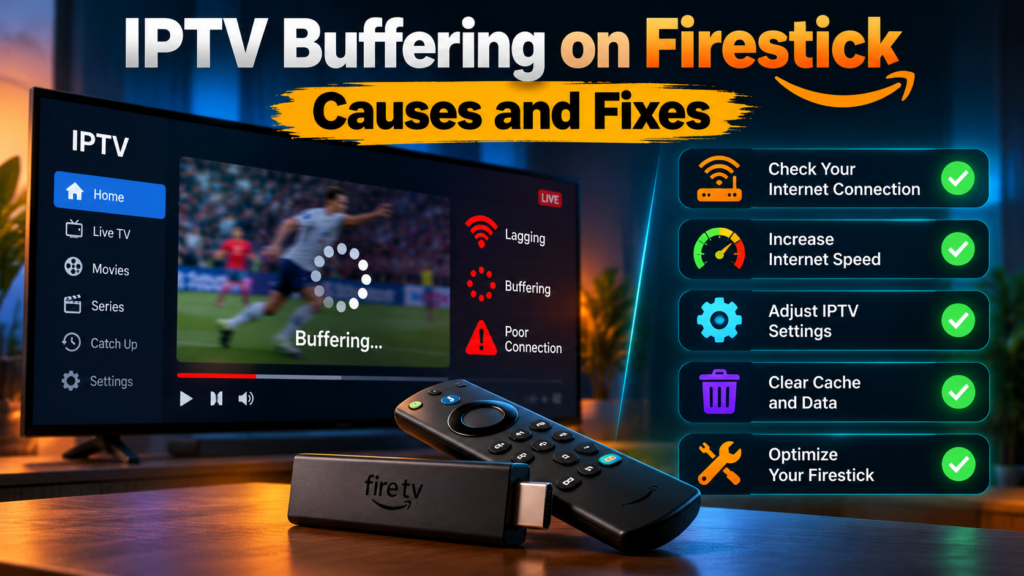
Look for packet loss, Wi-Fi interference, changing latency, and problems that affect particular times or streams. Our [IPTV buffering on Firestick guide](/iptv-buffering-on-firestick/) contains a diagnostic workflow that also applies to Google TV, even though the device menus differ.
13. Fix Crashes, Lag, and Low Storage
If the player closes, freezes, or responds slowly, use the least destructive fixes first.
Force Stop and Reopen the App
Open:
Settings → Apps → See all apps → [Player] → Force stop
Confirm, return to Home, and open the player again. Menu wording can vary by device.
Google’s official guide for fixing app crashes on Google TV recommends updating apps and force-stopping the affected application.
Update the Player and Other Apps
Search for Google Play Store, open the profile menu, and go to Manage apps & games → Updates → Update all. The device may feel slower while updates are being installed.
Restart Google TV after major updates.
Close Background Apps
Google’s guide for a slow or laggy Google TV device recommends closing recently opened apps through Settings → Apps and using Force stop.
Do not install “RAM cleaner” applications from unknown developers. Google TV manages memory automatically, and aggressive cleaners can add advertisements or create new problems.
Clear Cache Before Data
Open the player’s App info page and select Clear cache if available. Cache removal normally preserves the playlist, but you should still confirm the player’s behavior and backup options.
Clear data is different: it resets the application. Use it only after securely saving the account details and any supported backup.
Free Storage Safely
Uninstall unused apps through the Home screen or Settings → Apps. Remove obsolete downloads and oversized player caches where appropriate.
Do not delete system applications or data you cannot identify. On a shared television, confirm before removing another person’s apps.
Reinstall Only After Recording the Setup
If updates, restart, force stop, and cache clearing fail, record:
- Player name and version.
- Login format.
- EPG source arrangement.
- Favorites or backup location.
- Any custom decoder and buffer settings.
Then uninstall and reinstall the official app. A reinstall may remove all local configuration.
14. Improve Privacy and Maintain the Setup
A working setup still needs basic maintenance.
Protect Playlist Credentials
Treat the server address, username, password, M3U URL, and XMLTV URL as private. Do not expose them in:
- Public screenshots.
- Video tutorials.
- Forum posts.
- Image filenames or ALT text.
- Shared notes.
- Public link shorteners.
If credentials are exposed, ask the authorized issuer to replace them.
Review App Permissions
Open Settings → Apps → [Player] → Permissions. A player may need network and media access, but unrelated permissions deserve scrutiny.
Install from Google Play when possible, keep Play Protect enabled, and remove apps you no longer trust or use.
Keep the Device and Player Updated
Check periodically for:
- Google TV system updates.
- Television manufacturer firmware.
- Player updates.
- Expired subscriptions.
- EPG update failures.
- Storage warnings.
Do not update during an important live event if the device is stable. Leave enough time to restart and test afterward.
Back Up Only Through Trusted Features
If the player includes backup and restore, protect the backup because it may contain server and account information. Store it privately and delete obsolete copies.
Never upload a configuration file to an unknown converter or troubleshooting website.
15. Frequently Asked Questions
Can I Install IPTV Directly on a Google TV?
Yes, if a compatible IPTV player is available for that Google TV device. Install the player from Google Play, then add an authorized Xtream Codes or M3U account. The player and the content account are separate.
Does Google TV Include IPTV Channels?
Google TV can surface supported live television and streaming services, but installing a third-party IPTV player does not automatically include a private channel package. You still need a lawful, authorized playlist or account.
What Is the Best IPTV Player for Google TV?
There is no single best choice for every user. Select a legitimate television-compatible player that supports your login format, remote, EPG needs, accessibility requirements, and budget. Verify the developer and current Google Play listing.
Can I Use TiviMate on Google TV?
TiviMate is intended for Android TV-based television devices. Availability depends on the exact device, country, and current Play Store listing. If it is officially available for your compatible Google TV device, use the [TiviMate setup instructions](/tivimate-setup/).
Why Can’t I Find an IPTV App on Google TV?
The app may not support television devices, your model, OS version, country, account profile, or current Play Store configuration. Update the system and Play Store, verify the exact app name, check storage, and consult the developer’s official compatibility information.
Can I Install a Phone APK on Google TV?
Installation may be technically possible on some devices, but a phone build can require touch input, use the wrong screen layout, or fail on television hardware. Use an official Android TV or Google TV build from the legitimate developer. Avoid unknown APK sources and modified packages.
Should I Use Xtream Codes or M3U?
Use the format your authorized account and player support. Xtream Codes is often easier to enter with a remote and can organize content automatically. M3U is flexible but the long URL is easier to mistype or expose.
Why Do Channels Work but the TV Guide Is Empty?
Playback and EPG data are separate. Check the XMLTV URL, EPG-to-playlist assignment, manual update result, time zone, and channel mapping. An empty guide does not automatically mean the channel stream is broken.
Why Does IPTV Buffer When Other Apps Work?
Different apps can use different servers, routes, bitrates, and buffering systems. Test several channels, the same content at another time, another network, and Ethernet where supported. Also verify the account connection limit and player decoder settings.
Is Ethernet Better Than Wi-Fi for Google TV?
Ethernet can offer more consistent latency and less interference, but support depends on the television or streaming device. Strong, nearby 5 GHz Wi-Fi may also work well. Stability matters more than the connection label alone.
Will Clearing Cache Delete My Playlist?
Clearing cache normally removes temporary files, while clearing data resets the application. Behavior can vary, so check the player’s documentation and save the account information before using either option.
Can I Record IPTV on Google TV?
Recording depends on the player, device storage, file permissions, stream format, and the rights attached to the content. Some players require premium features or external storage. Confirm legal authorization and the player’s official requirements before recording.
Do I Need a VPN?
A VPN is not a requirement for basic Google TV IPTV setup. It can also reduce speed or introduce another troubleshooting variable. Do not use one to bypass laws, licensing restrictions, or service terms. If you use a legitimate VPN for general privacy, test playback with and without it to understand its effect.
16. Final Checklist
Before considering the setup complete, confirm that:
- The exact Google TV device and OS version are known.
- The system and installed apps are updated.
- The player came from Google Play or the legitimate developer.
- The player supports television remote navigation.
- The login format matches the details you received.
- The server, port, username, and password are exact.
- The M3U or XMLTV URL has not been exposed publicly.
- The playlist loads without an account-limit error.
- The EPG source is assigned and updated.
- Date, time, and time zone are correct.
- Several unrelated channels have been tested.
- Audio, subtitles, and aspect ratio are acceptable.
- The network is stable on Wi-Fi or Ethernet.
- There is enough free storage for guide and app data.
- A secure backup exists if the player supports it.
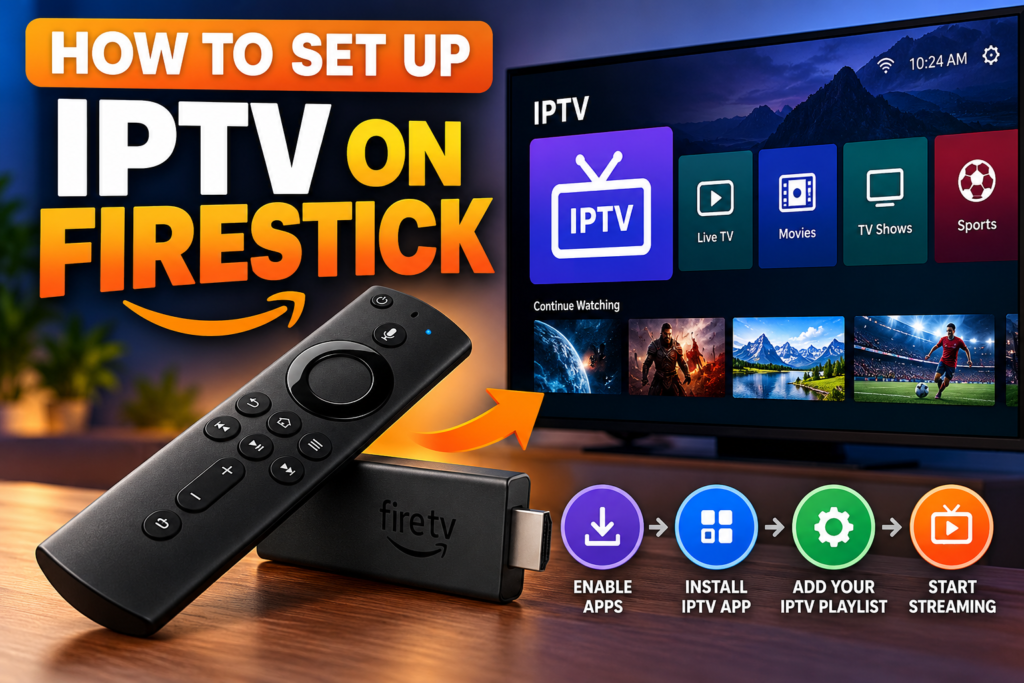
Setting up IPTV on Google TV should not require dozens of random changes. Install a compatible player from a trusted source, enter the authorized details exactly, verify the guide assignment, and test the setup in a controlled order. When something fails, identify whether the problem belongs to the app, credentials, playlist, EPG, device, or network before resetting anything.
If you are choosing between television platforms, you can also compare the practical setup process in our guides for [IPTV on Samsung Smart TV](/iptv-on-samsung-smart-tv/), [IPTV on LG Smart TV](/iptv-on-lg-smart-tv/), and [IPTV on Firestick](/how-to-set-up-iptv-on-firestick/).